Graph
@gravity-ui/graph · 


A graph visualization library that combines the best of both worlds:
- Canvas for high performance when viewing the full graph
- HTML/React for rich interactions when zoomed in
No more choosing between performance and interactivity. Perfect for large diagrams, flowcharts, and node-based editors.
Motivation
Modern web applications often require complex visualization and interactivity, but existing solutions typically focus on a single rendering technology:
- Canvas offers high performance for complex graphics but is limited in text handling and interactivity.
- HTML DOM is convenient for interfaces but less efficient for complex graphics or large numbers of elements.
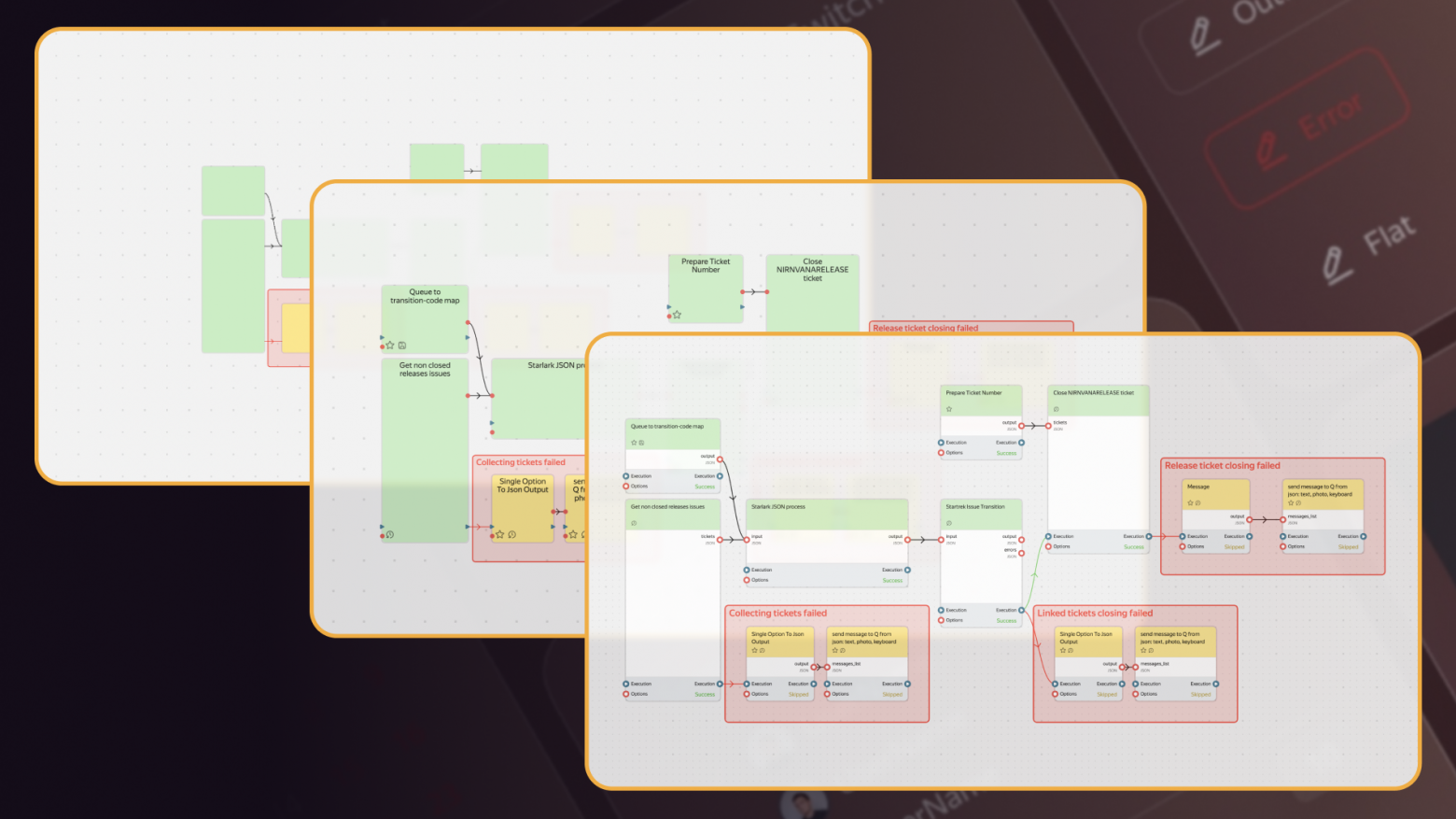
@gravity-ui/graph solves this by automatically switching between Canvas and HTML based on zoom level:
- Zoomed Out: Uses Canvas for efficient rendering of the full graph
- Medium Zoom: Shows schematic view with basic interactivity
- Zoomed In: Switches to HTML/React components for rich interactions
How It Works
The library uses a smart rendering system that automatically manages the transition between Canvas and React components:
- At low zoom levels, everything is rendered on Canvas for performance
- When zooming in to detailed view, the
GraphCanvascomponent:- Tracks camera viewport and scale changes
- Calculates which blocks are visible in the current viewport (with padding for smooth scrolling)
- Renders React components only for visible blocks
- Automatically updates the list when scrolling or zooming
- Removes React components when zooming out
// Example of React components rendering
const MyGraph = () => {
  return (
    <GraphCanvas
      graph={graph}
      renderBlock={(graph, block) => (
        <MyCustomBlockComponent
          graph={graph}
          block={block}
        />
      )}
    />
  );
};
Install
npm install @gravity-ui/graph
Usage
React Example
Detailed React Components Documentation
import React, { useEffect } from "react";
import type { Graph, TBlock } from "@gravity-ui/graph";
import { EAnchorType, GraphState } from "@gravity-ui/graph";
import { GraphCanvas, GraphBlock, useGraph } from "@gravity-ui/graph/react";

const config = {};

export function GraphEditor() {
  const { graph, setEntities, start } = useGraph(config);

  useEffect(() => {
    setEntities({
      blocks: [
        {
          is: "block-action",
          id: "action_1",
          x: -100,
          y: -450,
          width: 126,
          height: 126,
          selected: true,
          name: "Block #1",
          anchors: [
            {
              id: "out1",
              blockId: "action_1",
              type: EAnchorType.OUT,
              index: 0,
            },
          ],
        },
        {
          id: "action_2",
          is: "block-action",
          x: 253,
          y: 176,
          width: 126,
          height: 126,
          selected: false,
          name: "Block #2",
          anchors: [
            {
              id: "in1",
              blockId: "action_2",
              type: EAnchorType.IN,
              index: 0,
            },
          ],
        },
      ],
      connections: [
        {
          sourceBlockId: "action_1",
          sourceAnchorId: "out1",
          targetBlockId: "action_2",
          targetAnchorId: "in1",
        },
      ],
    });
  }, [setEntities]);

  const renderBlockFn = (graph: Graph, block: TBlock) => {
    return (
      <GraphBlock graph={graph} block={block}>
        {block.id}
      </GraphBlock>
    );
  };

  return (
    <GraphCanvas
      graph={graph}
      renderBlock={renderBlockFn}
      onStateChanged={({ state }) => {
        if (state === GraphState.ATTACHED) {
          start();
          graph.zoomTo("center", { padding: 300 });
        }
      }}
    />
  );
}
Vanilla JavaScript Example
import { Graph } from "@gravity-ui/graph";

// Create container element
const container = document.createElement('div');
container.style.width = '100vw';
container.style.height = '100vh';
container.style.overflow = 'hidden';
document.body.appendChild(container);

// Initialize graph with configuration
const graph = new Graph({
    configurationName: "example",
    blocks: [],
    connections: [],
    settings: {
        canDragCamera: true,
        canZoomCamera: true,
        useBezierConnections: true,
        showConnectionArrows: true
    }
}, container);

// Add blocks and connections
graph.setEntities({
    blocks: [
        {
            is: "block-action",
            id: "block1",
            x: 100,
            y: 100,
            width: 120,
            height: 120,
            name: "Block #1",
            anchors: [
                {
                    id: "out1",
                    blockId: "block1",
                    type: EAnchorType.OUT,
                    index: 0
                }
            ]
        },
        {
            is: "block-action",
            id: "block2",
            x: 300,
            y: 300,
            width: 120,
            height: 120,
            name: "Block #2",
            anchors: [
                {
                    id: "in1",
                    blockId: "block2",
                    type: EAnchorType.IN,
                    index: 0
                }
            ]
        }
    ],
    connections: [
        {
            sourceBlockId: "block1",
            sourceAnchorId: "out1",
            targetBlockId: "block2",
            targetAnchorId: "in1"
        }
    ]
});

// Start rendering
graph.start();

// Center the view
graph.zoomTo("center", { padding: 100 });
Live Examples
Documentation
Table of Contents
-
System
-
Components
-
Rendering
-
Blocks and Connections
-
Testing
License
Distributed under the MIT License. See LICENSE for details.
For AI agents
A hybrid Canvas/React graph editor for node-based diagrams — reach for it to build flowcharts, node editors, or large interactive diagrams where Canvas gives performance at low zoom and React components give rich interactivity when zoomed in.
When to use
- Node-based editors (flowcharts, pipelines, visual builders) with hundreds/thousands of nodes and connections.
- Mixed rendering: Canvas for the full-graph overview, React components for the blocks visible in the viewport at high zoom.
- Vanilla JS or React consumers — the core
Graphclass is framework-agnostic;@gravity-ui/graph/reactprovides the React bindings.
When not to use
- To plot numeric data series (line/bar/scatter charts), use
@gravity-ui/chartsor@gravity-ui/yagr— graph is a node/edge diagram editor, not a data chart. - For a static, non-editable diagram with few nodes, an SVG or a simpler diagram lib may suffice without the Canvas/React viewport machinery.
Common pitfalls
- Hallucinated import
GraphEditor— the React components areGraphCanvas,GraphBlock, and theuseGraphhook, imported from@gravity-ui/graph/react; the core class isGraphfrom@gravity-ui/graph. - Calling graph methods before
ATTACHEDstate — callstart()/zoomTo(...)inside theonStateChangedcallback whenstate === GraphState.ATTACHED, not on mount. - Forgetting
setEntities—useGraphreturnsgraph,setEntities,start; data only appears aftersetEntities({blocks, connections}). - Mixing anchor types — connections must reference existing anchor ids with matching
EAnchorType(IN/OUT) on the source and target blocks.
Documentation for AI agents
Agent-readable documentation for the installed version is located in node_modules/@gravity-ui/graph/build/docs/INDEX.md.


