Timeline
@gravity-ui/timeline 


React 기반 라이브러리로, Canvas 렌더링을 통해 인터랙티브한 타임라인 시각화를 구축할 수 있습니다.
문서
자세한 내용은 문서를 참조하세요.
미리보기
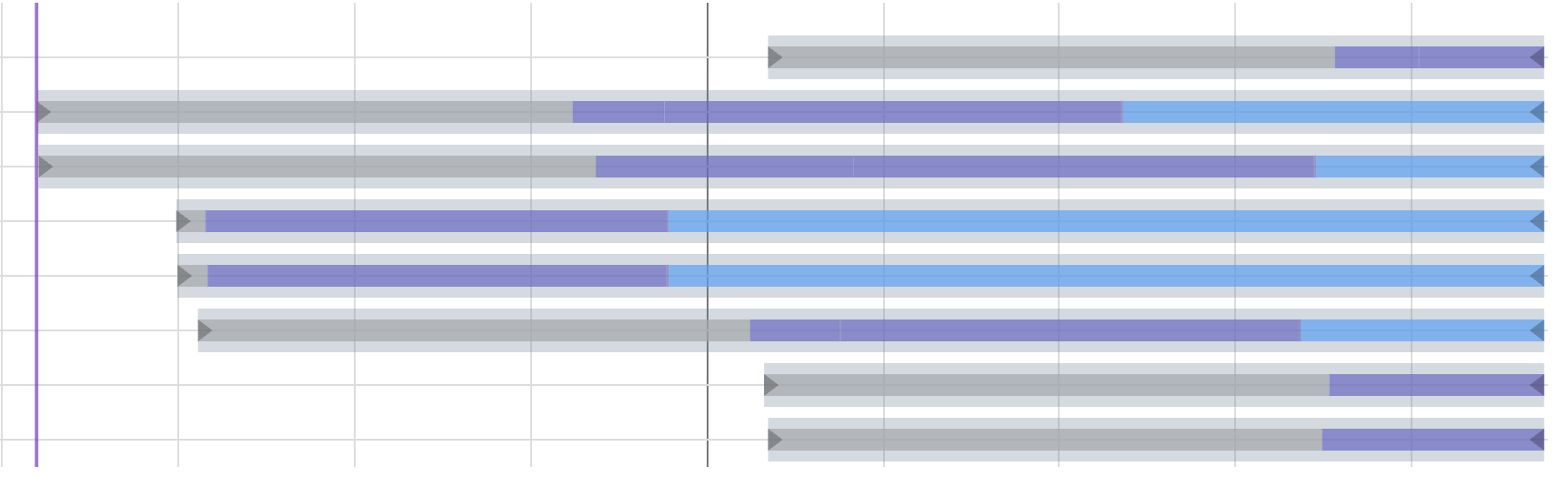
이벤트와 축이 있는 기본 타임라인:
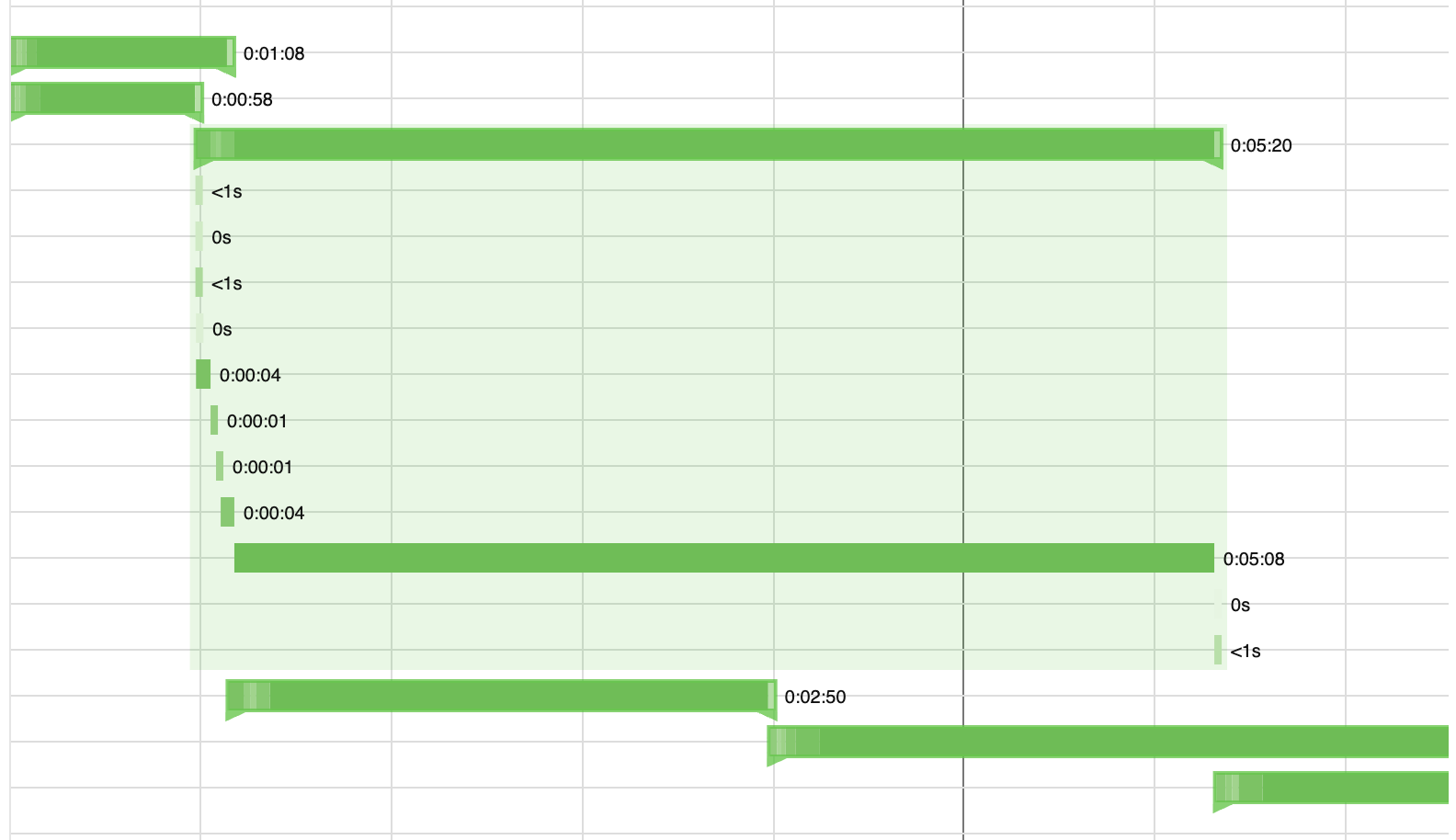
확장 가능한 중첩 이벤트가 있는 사용자 정의 렌더링 (NestedEvents 예시):
기능
- 고성능을 위한 Canvas 기반 렌더링
- 확대/축소 및 이동 기능이 있는 인터랙티브 타임라인
- 유연한 휠 및 트랙패드 상호 작용, 수직 스크롤 패스스루 포함
- 이벤트, 마커, 섹션, 축 및 그리드 지원
- 시각적 구성 및 시간대 하이라이팅을 위한 배경 섹션
- 스마트 마커 그룹화 및 자동 확대/축소 - 그룹화된 마커를 클릭하여 개별 구성 요소로 확대/축소
- 대규모 데이터셋에 대한 성능 향상을 위한 가상화 렌더링 (타임라인 콘텐츠가 뷰포트를 초과할 때만 활성화)
- 사용자 정의 가능한 모양 및 동작
- 전체 타입 정의를 포함한 TypeScript 지원
- 사용자 정의 훅을 사용한 React 통합
설치
npm install @gravity-ui/timeline
사용법
타임라인 컴포넌트는 다음과 같은 기본 설정으로 React 애플리케이션에서 사용할 수 있습니다.
import { TimelineCanvas, useTimeline } from '@gravity-ui/timeline/react';

const MyTimelineComponent = () => {
  const { timeline, api, start, stop } = useTimeline({
    settings: {
      start: Date.now(),
      end: Date.now() + 3600000, // 지금으로부터 1시간 후
      axes: [],
      events: [],
      markers: [],
      sections: []
    },
    viewConfiguration: {
      // 선택적 뷰 구성
    }
  });

  // timeline - Timeline 인스턴스
  // api - CanvasApi 인스턴스 (timeline.api와 동일)
  // start - 타임라인을 캔버스로 초기화하는 함수
  // stop - 타임라인을 파괴하는 함수

  return (
    <div style={{ width: '100%', height: '100%' }}>
      <TimelineCanvas timeline={timeline} />
    </div>
  );
};
축 구조
각 축은 다음 구조를 가집니다.
type TimelineAxis = {
  id: string;          // 고유한 축 식별자
  tracksCount: number; // 축의 트랙 수
  top: number;         // 수직 위치 (px)
  height: number;      // 트랙당 높이 (px)
};
수평 축 선
viewConfiguration.axes.linePosition을 통해 수평 선 배치를 구성합니다.
"center"(기본값)는 각 트랙의 중앙을 가로지르는 선을 그립니다."between"는 각 트랙 뒤, 즉 하단 경계에 선을 그립니다. 이는 중앙 정렬된 이벤트 막대가 있는 테이블 스타일 행에 유용합니다.
viewConfiguration: {
  axes: {
    linePosition: 'between'
  }
}
유연한 카메라 상호 작용
ZoomMode는 익숙한 상호 작용 프리셋을 제공하며, camera.interactions를 사용하면 개별 제스처를 재정의할 수 있습니다. 이는 타임라인이 수직으로 스크롤 가능한 페이지 내에 있을 때 유용합니다. 수평 이동 및 트랙패드 확대/축소를 유지하면서 일반 휠 스크롤이 부모 컨테이너에 도달하도록 합니다.
import {ZoomMode} from '@gravity-ui/timeline';

const {timeline} = useTimeline({
  settings: { /* ... */ },
  viewConfiguration: {
    camera: {
      zoom: ZoomMode.DEFAULT,
      interactions: {
        verticalWheel: 'pass-through',
        horizontalWheel: 'pan',
        pinch: 'zoom',
      },
      zoomSensitivity: {
        in: 0.5,
        out: 0.5,
      },
      minRange: 5_000,
      maxRange: 1000 * 60 * 60 * 24 * 365,
    },
  },
});
각 상호 작용은 'zoom', 'pan', 또는 'pass-through'를 허용합니다. pinch는 브라우저의 Ctrl+휠 트랙패드 제스처를 나타냅니다. zoomSensitivity.in 및 zoomSensitivity.out은 확대 및 축소 속도를 독립적으로 곱합니다. 1은 기본값이며, 더 낮은 값은 더 부드럽고 0은 해당 방향의 확대/축소를 비활성화합니다. 작은 트랙패드 델타는 자동으로 부드럽게 처리됩니다. minRange 및 maxRange는 밀리초 단위의 기간입니다. 최소값은 기본적으로 5초이며, 최대값은 구성되지 않은 경우 제한이 없습니다. 따라서 사용자가 얼마나 멀리 축소할 수 있는지 제한하려면 maxRange를 설정하세요. 대화형 Camera interactions Storybook 예시를 참조하세요.
섹션 구조
각 섹션에는 다음 구조가 필요합니다.
type TimelineSection = {
  id: string;               // 고유한 섹션 식별자
  from: number;             // 시작 타임스탬프
  to?: number;              // 선택적 종료 타임스탬프 (기본값은 타임라인 종료)
  color: string;            // 섹션의 배경색
  hoverColor?: string;      // 섹션에 마우스를 올렸을 때의 선택적 색상
  renderer?: AbstractSectionRenderer; // 선택적 사용자 정의 렌더러 (패키지에서 내보냄)
};
섹션은 시간대에 대한 배경색을 제공하고 타임라인 콘텐츠를 시각적으로 구성하는 데 도움이 됩니다.
const MyTimelineComponent = () => {
  const { timeline } = useTimeline({
    settings: {
      start: Date.now(),
      end: Date.now() + 3600000,
      axes: [],
      events: [],
      markers: [],
      sections: [
        {
          id: 'morning',
          from: Date.now(),
          to: Date.now() + 1800000, // 30분
          color: 'rgba(255, 235, 59, 0.3)', // 반투명 노란색
          hoverColor: 'rgba(255, 235, 59, 0.4)'
        },
        {
          id: 'afternoon',
          from: Date.now() + 1800000,
          // 'to'가 지정되지 않아 타임라인 끝까지 확장됩니다.
          color: 'rgba(76, 175, 80, 0.2)', // 반투명 녹색
          hoverColor: 'rgba(76, 175, 80, 0.3)'
        }
      ]
    },
    viewConfiguration: {
      sections: {
        hitboxPadding: 2 // 호버 감지 패딩
      }
    }
  });

  return <TimelineCanvas timeline={timeline} />;
};
마커 구조
각 마커는 다음 구조를 요구합니다:
type TimelineMarker = {
  time: number;           // 마커 위치 타임스탬프
  color: string;          // 마커 선 색상
  activeColor: string;    // 마커가 선택되었을 때의 색상 (필수)
  hoverColor: string;     // 마커에 호버되었을 때의 색상 (필수)
  lineWidth?: number;     // 마커 선의 선택적 너비
  label?: string;         // 선택적 레이블 텍스트
  labelColor?: string;    // 선택적 레이블 색상
  renderer?: AbstractMarkerRenderer; // 선택적 사용자 정의 렌더러
  nonSelectable?: boolean;// 마커를 선택할 수 있는지 여부
  group?: boolean;        // 마커가 그룹을 나타내는지 여부
};
마커 그룹화 및 확대/축소
타임라인은 가까운 마커를 자동으로 그룹화하고 확대/축소 기능을 제공합니다:
const MyTimelineComponent = () => {
  const { timeline } = useTimeline({
    settings: {
      start: Date.now(),
      end: Date.now() + 3600000,
      axes: [],
      events: [],
      markers: [
        // 이 마커들은 함께 그룹화됩니다.
        { time: Date.now(), color: '#ff0000', activeColor: '#ff5252', hoverColor: '#ff1744', label: '이벤트 1' },
        { time: Date.now() + 1000, color: '#ff0000', activeColor: '#ff5252', hoverColor: '#ff1744', label: '이벤트 2' },
        { time: Date.now() + 2000, color: '#ff0000', activeColor: '#ff5252', hoverColor: '#ff1744', label: '이벤트 3' },
      ]
    },
    viewConfiguration: {
      markers: {
        collapseMinDistance: 8,        // 8픽셀 내 마커 그룹화
        groupZoomEnabled: true,        // 그룹 클릭 시 확대/축소 활성화
        groupZoomPadding: 0.3,        // 그룹 주변 30% 패딩
        groupZoomMaxFactor: 0.3,      // 최대 확대/축소 계수
      }
    }
  });

  // 그룹 확대/축소 이벤트 수신
  useTimelineEvent(timeline, 'on-group-marker-click', (data) => {
    console.log('그룹 확대/축소됨:', data);
  });

  return <TimelineCanvas timeline={timeline} />;
};
작동 방식
타임라인 컴포넌트는 React를 사용하여 구축되었으며, 대화형 타임라인 시각화를 유연하게 생성할 수 있는 방법을 제공합니다. 작동 방식은 다음과 같습니다.
컴포넌트 아키텍처
타임라인은 두 가지 주요 객체를 통해 구성할 수 있는 React 컴포넌트로 구현됩니다.
-
TimelineSettings: 핵심 타임라인 동작 및 모양을 제어합니다.
start: 타임라인 시작 시간end: 타임라인 종료 시간axes: 축 구성 배열 (아래 구조 참조)events: 이벤트 구성 배열markers: 마커 구성 배열sections: 섹션 구성 배열
-
ViewConfiguration: 시각적 표현 및 상호 작용 설정을 관리합니다.
- 모양, 확대/축소 수준 및 상호 작용 동작을 제어합니다.
- 사용자 정의하거나 기본값을 사용할 수 있습니다.
이벤트 처리
타임라인 컴포넌트는 여러 대화형 이벤트를 지원합니다.
on-click: 타임라인 클릭 시 트리거됩니다. 히트된 요소, 타임스탬프, 뷰포트 좌표 및 캔버스 좌표를 포함합니다.on-context-click: 오른쪽 클릭/컨텍스트 메뉴 시 트리거됩니다.on-select-change: 선택이 변경될 때 발생합니다.on-hover: 타임라인 요소에 호버될 때 트리거됩니다.on-leave: 마우스가 타임라인 요소를 벗어날 때 발생합니다.
이벤트 처리 예시:
import { useTimelineEvent } from '@gravity-ui/timeline/react';

const MyTimelineComponent = () => {
  const { timeline } = useTimeline({ /* ... */ });

  useTimelineEvent(timeline, 'on-click', (data) => {
    console.log('타임라인 클릭됨:', data);
  });

  useTimelineEvent(timeline, 'on-select-change', (data) => {
    console.log('선택 변경됨:', data);
  });

  return <TimelineCanvas timeline={timeline} />;
};
React 통합
컴포넌트는 타임라인 관리를 위해 사용자 정의 훅을 사용합니다.
-
useTimeline: 타임라인 인스턴스 및 해당 수명 주기를 관리합니다.- 타임라인을 생성하고 초기화합니다.
- 컴포넌트 언마운트 시 정리합니다.
- 타임라인 인스턴스에 대한 액세스를 제공합니다.
-
useTimelineEvent: 이벤트 구독 및 정리를 처리합니다.- 이벤트 리스너 수명 주기를 관리합니다.
- 언마운트 시 리스너를 자동으로 정리합니다.
컴포넌트는 언마운트 시 타임라인 인스턴스의 정리 및 파괴를 자동으로 처리합니다.
이벤트 팝업
이벤트 세부 정보를 표시하기 위해 호버 이벤트에 구독하거나 좌표를 직접 계산할 필요 없이 @gravity-ui/uikit 및 해당 스타일을 설치하세요.
import '@gravity-ui/uikit/styles/fonts.css';
import '@gravity-ui/uikit/styles/styles.css';
import {EventPopup} from '@gravity-ui/timeline/react/uikit';

<>
  <TimelineCanvas timeline={timeline} />
  <EventPopup
    timeline={timeline}
    content={(event) => <EventDetails event={event} />}
  />
</>
팝업, 호버 하이라이트 및 커서는 동일한 이벤트를 사용합니다. 정확한 히트가 가까운 이벤트보다 우선합니다. 겹치는 정확한 히트는 그리기 순서상 마지막 이벤트로 해결됩니다. 정확한 히트가 없을 때만 3px + events.hitboxPadding의 허용 오차가 사용됩니다. 그룹 쿼리 및 on-hover는 여전히 모든 후보를 포함합니다.
EventPopup는 150ms 후에 열리고 포인터가 이벤트를 벗어난 후 200ms 후에 닫힙니다. 필요한 경우 openDelay, closeDelay, placement, offset, className 또는 aria-label을 설정하세요. 팝업은 콘텐츠에 포인터나 포커스가 있는 동안 열려 있으며, Escape 키 또는 외부 클릭 시 닫힙니다. 이벤트가 겹칠 경우 데이터 순서상 마지막 이벤트를 사용합니다. hoverColor와 isHovered는 이벤트 그리기를 제어하며, EventPopup은 세부 UI를 제어합니다.
이벤트 구조
타임라인의 이벤트는 다음 구조를 따릅니다.
type TimelineEvent = {
  id: string;             // 고유 식별자
  from: number;           // 시작 타임스탬프
  to?: number;            // 종료 타임스탬프 (점 이벤트의 경우 선택 사항)
  axisId: string;         // 이 이벤트가 속한 축의 ID
  trackIndex: number;     // 축 트랙 내 인덱스
  renderer?: AbstractEventRenderer; // 선택적 사용자 정의 렌더러
  color?: string;         // 선택적 이벤트 색상
  hoverColor?: string;    // 선택적 호버 상태 색상
  selectedColor?: string; // 선택적 선택 상태 색상
  cursor?: string;        // 이벤트 위에 마우스를 올렸을 때 선택적 CSS 커서
};
클릭 시 동작하는 이벤트에는 cursor: 'pointer'를 설정하세요. 커서는 포인터가 해당 이벤트 위에 있을 때만 적용됩니다. 이벤트가 겹칠 경우 데이터 순서상 마지막 이벤트가 커서를 결정합니다.
Gravity UI 색상
Canvas는 자체적으로 CSS 사용자 정의 속성을 해석할 수 없습니다. Timeline은 canvas 요소에 대해 전체 값 var(--token)을 해석하므로, Gravity UI 의미론적 토큰은 내장 이벤트, 마커, 섹션, 축, 그리드 및 눈금자에 대해 작동합니다.
import '@gravity-ui/uikit/styles/fonts.css';
import '@gravity-ui/uikit/styles/styles.css';
import {ThemeProvider} from '@gravity-ui/uikit';
import {useTimeline} from '@gravity-ui/timeline/react';
import {GravityTimelineCanvas} from '@gravity-ui/timeline/react/uikit';

<ThemeProvider theme="light">
  <GravityTimelineCanvas timeline={timeline} />
</ThemeProvider>
color: 'var(--g-color-base-positive-medium)'와 같이 모든 색상 필드에 토큰을 직접 전달하세요. GravityTimelineCanvas는 유효한 Gravity UI 테마가 변경될 때 자동으로 다시 그려집니다. 누락된 토큰의 경우 var(--app-event-color, transparent)와 같은 CSS 폴백을 사용하거나 사용자 정의 렌더러에서 timeline.api.resolveColor(color, fallback)를 호출하세요.
이벤트의 경우, color는 일반적인 색상으로, hoverColor는 포인터 호버 시, selectedColor는 선택 후 사용됩니다.
const events = [
  {
    id: 'deploy',
    from: start,
    to: end,
    axisId: 'main',
    trackIndex: 0,
    color: 'var(--g-color-base-positive-medium)',
    hoverColor: 'var(--g-color-base-positive-medium-hover)',
    selectedColor: 'var(--g-color-base-positive-heavy)',
  },
];
사용자 정의 이벤트 렌더러는 마지막 선택적 인수로 resolveColor를 받습니다. 사용자 정의 마커 및 섹션 렌더러는 렌더 데이터에서 이를 받습니다.
Canvas 글꼴
눈금자, 이벤트 및 마커의 기본 글꼴을 구성하려면 viewConfiguration.font를 한 번 설정하세요. 구성 요소별 ruler.font, events.font 또는 markers.font가 우선 적용됩니다. 기본값은 10px sans-serif입니다.
Canvas는 ctx.font에서 CSS 변수나 inherit을 직접 사용할 수 없으므로, Timeline은 canvas CSS 컨텍스트에서 전체 값 토큰을 해석합니다.
viewConfiguration: {
  font: 'var(--g-text-caption-2-font)',
}
canvas 요소의 계산된 글꼴을 사용하려면 font: 'inherit'을 사용하세요. 사용자 정의 렌더러는 resolveColor와 함께 resolveFont를 받거나 timeline.api.resolveFont(font)를 호출할 수 있습니다. 웹 글꼴이 동적으로 로드된 후에는 timeline.api.rerender()를 호출하여 canvas 텍스트를 다시 그리세요.
직접 TypeScript 사용
Timeline 클래스는 React 없이 TypeScript에서 직접 사용할 수 있습니다. 이는 다른 프레임워크나 일반 JavaScript 애플리케이션과 통합하는 데 유용합니다.
import { Timeline } from '@gravity-ui/timeline';

const timestamp = Date.now();

// 타임라인 인스턴스 생성
const timeline = new Timeline({
  settings: {
    start: timestamp,
    end: timestamp + 3600000, // 지금으로부터 1시간 후
    axes: [
      {
        id: 'main',
        tracksCount: 3,
        top: 0,
        height: 100
      }
    ],
    events: [
      {
        id: 'event1',
        from: timestamp + 1800000, // 지금으로부터 30분 후
        to: timestamp + 2400000,   // 지금으로부터 40분 후
        label: '샘플 이벤트',
        axisId: 'main'
      }
    ],
    markers: [
      {
        id: 'marker1',
        time: timestamp + 1200000, // 지금으로부터 20분 후
        label: '중요 지점',
        color: '#ff0000',
        activeColor: '#ff5252',
        hoverColor: '#ff1744'
      }
    ],
    sections: [
      {
        id: 'section1',
        from: timestamp,
        to: timestamp + 1800000, // 처음 30분
        color: 'rgba(33, 150, 243, 0.2)', // 연한 파란색 배경
        hoverColor: 'rgba(33, 150, 243, 0.3)'
      }
    ]
  },
  viewConfiguration: {
    // 선택 사항: 보기 설정 사용자 정의
    zoomLevels: [1, 2, 4, 8, 16],
    hideRuler: false,
    showGrid: true
  }
});

// canvas 요소로 초기화
const canvas = document.querySelector('canvas');
if (canvas instanceof HTMLCanvasElement) {
  timeline.init(canvas);
}

// 이벤트 리스너 추가
timeline.on('on-click', (detail) => {
  console.log('타임라인 클릭됨:', detail);
});

timeline.on('on-select-change', (detail) => {
  console.log('선택 변경됨:', detail);
});

// 완료 시 정리
timeline.destroy();
Timeline 클래스는 타임라인 관리를 위한 풍부한 API를 제공합니다.
-
이벤트 관리:
// 이벤트 리스너 추가 timeline.on('eventClick', (detail) => { console.log('이벤트 클릭됨:', detail); }); // 이벤트 리스너 제거 const handler = (detail) => console.log(detail); timeline.on('eventClick', handler); timeline.off('eventClick', handler); // 사용자 정의 이벤트 발생 timeline.emit('customEvent', { data: 'custom data' }); -
타임라인 제어:
// 타임라인 데이터 업데이트
timeline.api.setEvents([
  {
    id: 'newEvent',
    from: Date.now(),
    to: Date.now() + 3600000,
    label: '새 이벤트',
    axisId: 'main',
    trackIndex: 0
  }
]);

// 축 업데이트
timeline.api.setAxes([
  {
    id: 'newAxis',
    tracksCount: 2,
    top: 0,
    height: 80
  }
]);

// 마커 업데이트
timeline.api.setMarkers([
  {
    id: 'newMarker',
    time: Date.now(),
    label: '새 마커',
    color: '#00ff00',
    activeColor: '#4caf50',
    hoverColor: '#2e7d32'
  }
]);

// 섹션 업데이트
timeline.api.setSections([
  {
    id: 'newSection',
    from: Date.now(),
    to: Date.now() + 1800000,
    color: 'rgba(255, 193, 7, 0.2)', // 연한 호박색 배경
    hoverColor: 'rgba(255, 193, 7, 0.3)'
  }
]);

// 보기 설정 업데이트 (현재 설정과 병합됨)
timeline.api.setViewConfiguration({ hideRuler: true });
라이브 예제
Storybook에서 대화형 예제를 살펴보세요:
- 기본 타임라인 - 이벤트와 축이 있는 간단한 타임라인
- 무한 타임라인 - 이벤트와 축이 있는 무한 타임라인
- 마커 - 세로 마커와 레이블이 있는 타임라인
- 카메라 상호작용 - 휠, 가로 스크롤, 트랙패드 핀치 동작 설정
- 사용자 정의 이벤트 - 사용자 정의 이벤트 렌더링이 있는 타임라인
- 통합 - RangeDateSelection, DragHandler, NestedEvents, Popup, List
개발
Storybook
이 프로젝트에는 컴포넌트 개발 및 문서화를 위한 Storybook이 포함되어 있습니다.
Storybook을 실행하려면:
npm run storybook
그러면 포트 6006에서 Storybook 개발 서버가 시작됩니다. http://localhost:6006에서 접속할 수 있습니다.
배포를 위해 Storybook의 정적 버전을 빌드하려면:
npm run build-storybook
라이선스
MIT


