Graph
@gravity-ui/graph · 


Eine Bibliothek zur Visualisierung von Graphen, die das Beste aus beiden Welten vereint:
- Canvas für hohe Leistung bei der Anzeige des gesamten Graphen
- HTML/React für reichhaltige Interaktionen bei Vergrößerung
Keine Kompromisse mehr zwischen Leistung und Interaktivität. Perfekt für große Diagramme, Flussdiagramme und knotenbasierte Editoren.
Motivation
Moderne Webanwendungen erfordern oft komplexe Visualisierungen und Interaktivität, aber bestehende Lösungen konzentrieren sich typischerweise auf eine einzige Rendering-Technologie:
- Canvas bietet hohe Leistung für komplexe Grafiken, ist aber in der Textverarbeitung und Interaktivität eingeschränkt.
- HTML DOM ist praktisch für Benutzeroberflächen, aber weniger effizient für komplexe Grafiken oder eine große Anzahl von Elementen.
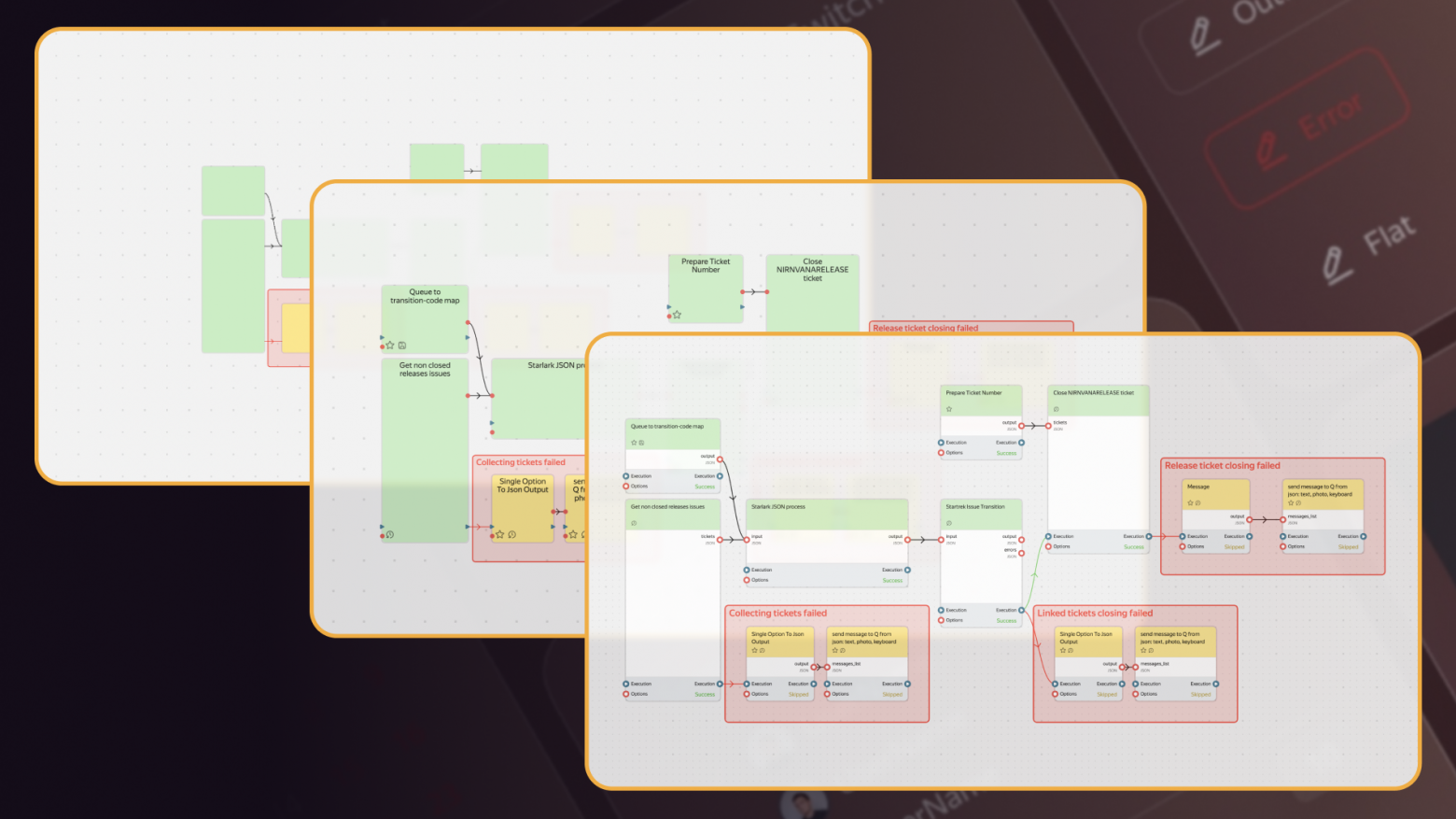
@gravity-ui/graph löst dieses Problem, indem es automatisch zwischen Canvas und HTML basierend auf dem Zoomlevel wechselt:
- Ausgezoomt: Verwendet Canvas für effizientes Rendern des gesamten Graphen
- Mittlerer Zoom: Zeigt eine schematische Ansicht mit grundlegender Interaktivität
- Eingezoomt: Wechselt zu HTML/React-Komponenten für reichhaltige Interaktionen
Funktionsweise
Die Bibliothek verwendet ein intelligentes Rendering-System, das den Übergang zwischen Canvas und React-Komponenten automatisch verwaltet:
- Bei niedrigen Zoomstufen wird alles auf Canvas gerendert, um die Leistung zu optimieren.
- Beim Hineinzoomen in die Detailansicht:
- Der
GraphCanvas-Komponente verfolgt Änderungen am Kamera-Viewport und der Skalierung. - Berechnet, welche Blöcke im aktuellen Viewport sichtbar sind (mit Polsterung für sanftes Scrollen).
- Rendert React-Komponenten nur für sichtbare Blöcke.
- Aktualisiert die Liste automatisch beim Scrollen oder Zoomen.
- Entfernt React-Komponenten beim Auszoomen.
- Der
// Beispiel für das Rendern von React-Komponenten
const MyGraph = () => {
  return (
    <GraphCanvas
      graph={graph}
      renderBlock={(graph, block) => (
        <MyCustomBlockComponent
          graph={graph}
          block={block}
        />
      )}
    />
  );
};
Installation
npm install @gravity-ui/graph
Verwendung
React-Beispiel
Detaillierte Dokumentation zu React-Komponenten
import React, { useEffect } from "react";
import type { Graph, TBlock } from "@gravity-ui/graph";
import { EAnchorType, GraphState } from "@gravity-ui/graph";
import { GraphCanvas, GraphBlock, useGraph } from "@gravity-ui/graph/react";

const config = {};

export function GraphEditor() {
  const { graph, setEntities, start } = useGraph(config);

  useEffect(() => {
    setEntities({
      blocks: [
        {
          is: "block-action",
          id: "action_1",
          x: -100,
          y: -450,
          width: 126,
          height: 126,
          selected: true,
          name: "Block #1",
          anchors: [
            {
              id: "out1",
              blockId: "action_1",
              type: EAnchorType.OUT,
              index: 0,
            },
          ],
        },
        {
          id: "action_2",
          is: "block-action",
          x: 253,
          y: 176,
          width: 126,
          height: 126,
          selected: false,
          name: "Block #2",
          anchors: [
            {
              id: "in1",
              blockId: "action_2",
              type: EAnchorType.IN,
              index: 0,
            },
          ],
        },
      ],
      connections: [
        {
          sourceBlockId: "action_1",
          sourceAnchorId: "out1",
          targetBlockId: "action_2",
          targetAnchorId: "in1",
        },
      ],
    });
  }, [setEntities]);

  const renderBlockFn = (graph: Graph, block: TBlock) => {
    return (
      <GraphBlock graph={graph} block={block}>
        {block.id}
      </GraphBlock>
    );
  };

  return (
    <GraphCanvas
      graph={graph}
      renderBlock={renderBlockFn}
      onStateChanged={({ state }) => {
        if (state === GraphState.ATTACHED) {
          start();
          graph.zoomTo("center", { padding: 300 });
        }
      }}
    />
  );
}
Vanilla JavaScript-Beispiel
import { Graph } from "@gravity-ui/graph";

// Container-Element erstellen
const container = document.createElement('div');
container.style.width = '100vw';
container.style.height = '100vh';
container.style.overflow = 'hidden';
document.body.appendChild(container);

// Graph mit Konfiguration initialisieren
const graph = new Graph({
    configurationName: "example",
    blocks: [],
    connections: [],
    settings: {
        canDragCamera: true,
        canZoomCamera: true,
        useBezierConnections: true,
        showConnectionArrows: true
    }
}, container);
// Blöcke und Verbindungen hinzufügen
graph.setEntities({
    blocks: [
        {
            is: "block-action",
            id: "block1",
            x: 100,
            y: 100,
            width: 120,
            height: 120,
            name: "Block #1",
            anchors: [
                {
                    id: "out1",
                    blockId: "block1",
                    type: EAnchorType.OUT,
                    index: 0
                }
            ]
        },
        {
            is: "block-action",
            id: "block2",
            x: 300,
            y: 300,
            width: 120,
            height: 120,
            name: "Block #2",
            anchors: [
                {
                    id: "in1",
                    blockId: "block2",
                    type: EAnchorType.IN,
                    index: 0
                }
            ]
        }
    ],
    connections: [
        {
            sourceBlockId: "block1",
            sourceAnchorId: "out1",
            targetBlockId: "block2",
            targetAnchorId: "in1"
        }
    ]
});

// Rendering starten
graph.start();

// Ansicht zentrieren
graph.zoomTo("center", { padding: 100 });
Live-Beispiele
- Grundlegendes Beispiel
- Groß angelegtes Beispiel
- Benutzerdefinierte Blöcke anzeigen
- Bezier-Verbindung
- Verbindung anpassen
Dokumentation
Inhaltsverzeichnis
-
System
-
Komponenten
-
Rendering
-
Blöcke und Verbindungen
-
Tests
Lizenz
Verteilt unter der MIT-Lizenz. Details finden Sie in LICENSE.
Für KI-Agenten
Ein hybrider Canvas/React-Graph-Editor für knotenbasierte Diagramme – verwenden Sie ihn, um Flussdiagramme, Knoteneditoren oder große interaktive Diagramme zu erstellen, bei denen Canvas Leistung bei geringem Zoom bietet und React-Komponenten bei hohem Zoom reichhaltige Interaktivität ermöglichen.
Wann verwenden
- Knoteneditoren (Flussdiagramme, Pipelines, visuelle Builder) mit Hunderten/Tausenden von Knoten und Verbindungen.
- Gemischtes Rendering: Canvas für die Gesamtübersicht des Graphen, React-Komponenten für die im Ansichtsfenster sichtbaren Blöcke bei hohem Zoom.
- Vanilla JS oder React-Nutzer – die Kernklasse
Graphist framework-unabhängig;@gravity-ui/graph/reactbietet die React-Bindings.
Wann nicht verwenden
- Zum Plotten von numerischen Datenreihen (Linien-/Balken-/Streudiagramme) verwenden Sie
@gravity-ui/chartsoder@gravity-ui/yagr– Graph ist ein Knoten-/Kanten-Diagramm-Editor, kein Daten-Chart. - Für ein statisches, nicht bearbeitbares Diagramm mit wenigen Knoten kann eine SVG oder eine einfachere Diagrammbibliothek ohne die Canvas/React-Viewport-Mechanismen ausreichen.
Häufige Fallstricke
- Halluzinierter Import
GraphEditor– die React-Komponenten sindGraphCanvas,GraphBlockund der HookuseGraph, importiert aus@gravity-ui/graph/react; die Kernklasse istGraphaus@gravity-ui/graph. - Aufrufen von Graph-Methoden vor dem
ATTACHED-Status – rufen Siestart()/zoomTo(...)innerhalb desonStateChanged-Callbacks auf, wennstate === GraphState.ATTACHED, nicht beim Mounten. - Vergessen von
setEntities–useGraphgibtgraph,setEntities,startzurück; Daten erscheinen erst nachsetEntities({blocks, connections}). - Mischen von Anker-Typen – Verbindungen müssen auf vorhandene Anker-IDs mit übereinstimmendem
EAnchorType(IN/OUT) auf den Quell- und Zielblöcken verweisen.
Dokumentation für KI-Agenten
Agentenlesbare Dokumentation für die installierte Version befindet sich in node_modules/@gravity-ui/graph/build/docs/INDEX.md.


